How to Clear DNS Cache on Any Device
A complete guide to flushing your DNS cache on Windows, macOS, Linux, iOS, Android, and Chrome. Plus, why a smarter DNS means you rarely need to do this at all.
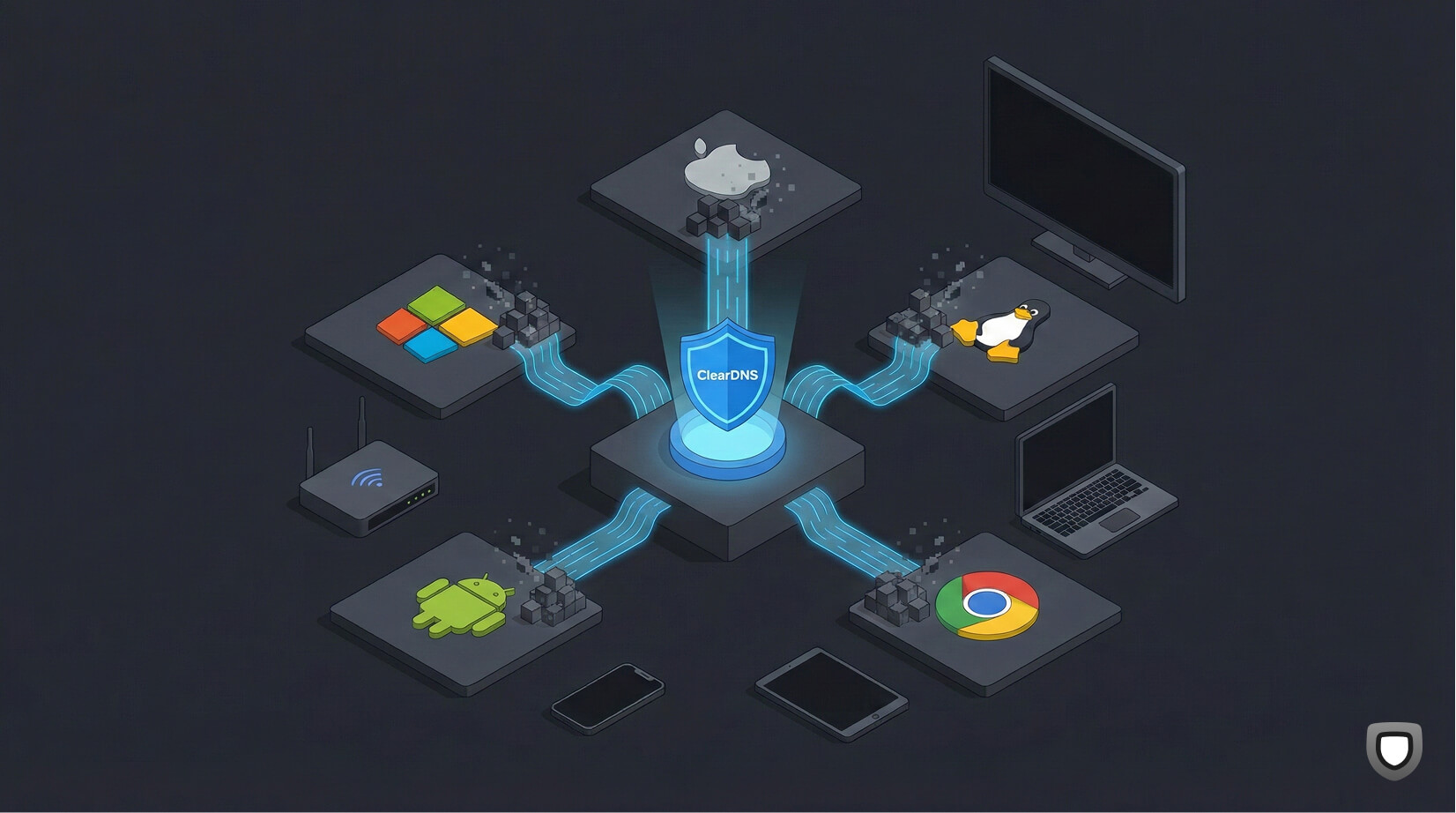
Can't reach a website that was working a minute ago? Getting redirected to an old server? The fix is often clearing your DNS cache - but there's a better way to never deal with this again.
What Is DNS Cache?
Every time you visit a website, your device looks up the domain name (like google.com) and translates it to an IP address (like 142.250.80.46). This lookup goes through the Domain Name System - DNS - which works like the internet's phonebook.
To speed things up, your device caches these lookups locally. The next time you visit the same site, your device skips the lookup and uses the cached answer. This is the DNS cache.
The problem? Most ISP resolvers cache records for 12-24 hours. When a website changes servers or you switch DNS settings, you're stuck with stale data for hours.
ClearDNS uses 20-60 second cache TTLs. Stale records fix themselves. Set up now - free. →When Should You Clear Your DNS Cache?
You should flush your DNS cache when:
- A website won't load but works fine on other devices or networks
- You see "DNS_PROBE_FINISHED_NXDOMAIN" or similar DNS errors in your browser
- You just changed DNS providers and want immediate effect
- A website recently migrated to a new server and you're still seeing the old version
- You disabled or enabled DNS filtering rules and want changes to apply instantly
Or you could skip all of this. With ClearDNS, the maximum cache time is 60 seconds - stale records expire on their own before you even notice.
Clear DNS Cache on Windows
Skip the hassle - use ClearDNS on Windows
Instead of running commands every time your DNS cache goes stale, set up ClearDNS once and never think about it again. ClearDNS refreshes DNS records every 20-60 seconds automatically - plus you get ad blocking, tracker protection, and malware filtering. Takes 2 minutes, no account needed.
Set up ClearDNS on Windows now - free →Manual method: flush DNS cache on Windows
Open Command Prompt or PowerShell as Administrator (right-click Start button, select "Terminal (Admin)").
Run:
ipconfig /flushdnsYou should see: Successfully flushed the DNS Resolver Cache.
To verify the cache is empty:
ipconfig /displaydnsNote: You'll need to do this every time your cache goes stale. With ClearDNS, records refresh automatically every 20-60 seconds.
Clear DNS Cache on macOS
Skip the Terminal - use ClearDNS on Mac
No sudo commands, no Terminal, no password prompts. Set up ClearDNS once on your Mac and DNS cache problems disappear permanently. Automatic cache refresh, ad blocking, and privacy protection - takes under 2 minutes.
Manual method: flush DNS cache on macOS
Open Terminal (Cmd + Space, type "Terminal", press Enter).
Run this command (works on macOS Ventura, Sonoma, Sequoia, and later):
sudo dscacheutil -flushcache; sudo killall -HUP mDNSResponderEnter your password when prompted. There's no confirmation message - the cache is cleared silently.
You'll need to repeat this every time. ClearDNS handles this automatically with 20-60 second cache TTLs.
Clear DNS Cache on Linux
The better way - use ClearDNS on Linux
Whether you're on Ubuntu, Fedora, Arch, or Debian - ClearDNS works the same way. Set it once, and DNS cache issues are solved permanently across all distros. Automatic DNS refresh every 20-60 seconds, plus full DNS filtering.
Set up ClearDNS on Linux now - free →Manual method: flush DNS cache on Linux
For systemd-resolved (Ubuntu 18.04+, Fedora):
sudo systemd-resolve --flush-cachesTo verify:
sudo systemd-resolve --statisticsFor dnsmasq or nscd:
sudo systemctl restart dnsmasq
# or
sudo systemctl restart nscd
Different distros use different DNS resolvers. ClearDNS works identically on all of them.
Clear DNS Cache on iPhone / iPad
Set it and forget it - ClearDNS on iOS
No Airplane Mode toggling, no settings buried in menus. ClearDNS on iOS keeps your DNS fresh automatically with cache TTLs under 60 seconds. Install the DNS profile in one tap - system-wide ad blocking and tracker protection included.
Set up ClearDNS on iPhone now - free →Manual method: flush DNS cache on iOS
Open Settings, turn on Airplane Mode, wait 10 seconds, then turn it off. This clears the DNS cache along with resetting network connections.
Alternatively, go to Settings > Wi-Fi, tap the (i) next to your network, and tap Renew Lease.
This temporarily disrupts all network connections. With ClearDNS, records refresh silently in the background.
Clear DNS Cache on Android
The smart way - ClearDNS on Android
Android makes it surprisingly hard to clear DNS cache manually. ClearDNS solves this entirely - set it up once via Private DNS and you'll never need to flush cache again. Takes 30 seconds, gives you automatic cache refresh, ad blocking, and malware protection system-wide.
Set up ClearDNS on Android now - free →Manual method: flush DNS cache on Android
Method 1: Toggle Airplane Mode on and off (same as iOS).
Method 2: In Chrome, navigate to:
chrome://net-internals/#dnsTap Clear host cache.
Android doesn't expose a system-level DNS flush. ClearDNS bypasses this limitation entirely with short TTLs.
Clear DNS Cache in Chrome
With ClearDNS, Chrome cache doesn't matter
Chrome maintains its own DNS cache separate from your OS. Even after flushing your system cache, Chrome may still use stale records. ClearDNS solves both - records refresh every 20-60 seconds at the resolver level, so Chrome always gets fresh data.
Set up ClearDNS and skip the chrome://flags dance →Manual method: flush Chrome's internal DNS cache
Open a new tab and navigate to:
chrome://net-internals/#dnsClick Clear host cache. Then go to:
chrome://net-internals/#socketsClick Flush socket pools to clear any open connections using old IP addresses.
You need to do both steps. With ClearDNS, neither is necessary.
Why DNS Cache Causes Problems
Traditional DNS resolvers set long cache times - called TTL (Time to Live). Many ISPs cache DNS records for 24 hours or more. That means if a website changes its IP address, you could be stuck trying to reach the old server for an entire day.
This creates real problems:
- Website migrations: A site moves to a new host but your device still connects to the old one
- CDN failovers: A content delivery network switches to a different edge server but your cache points to the old one
- DNS filtering changes: You update your blocking rules but stale cache means the old rules still apply
- Security updates: A domain's IP changes after a security incident but you're still cached to the compromised address
"The longer your DNS cache TTL, the longer you're potentially stuck with stale, incorrect, or even dangerous DNS records."
How ClearDNS Eliminates the Cache Problem
ClearDNS takes a fundamentally different approach. Instead of caching DNS records for hours or days, ClearDNS uses extremely short cache windows:
ClearDNS Cache TTLs vs. Your ISP
- Decision cache: 20 seconds (ISP: 12-24 hours)
- Policy updates: 60 seconds (ISP: manual flush required)
- Blocked domains: 60 seconds (ISP: N/A - no filtering)
- Allowed domains: 1-60 seconds (ISP: hours)
Maximum stale time: 60 seconds. Typical: under 20 seconds.
This means:
- No more manual cache flushing - stale records expire on their own within a minute
- Instant rule changes - block or unblock a domain and it takes effect almost immediately
- Faster failover - if a website changes servers, you reach the new one within seconds
- Better security - compromised domains get blocked faster when threat lists update
Plus, ClearDNS gives you more than just fast cache refresh:
- Ad and tracker blocking at the DNS level - no browser extensions needed
- Malware and phishing protection - dangerous domains blocked before they load
- No account required - set up in under 2 minutes, completely anonymous
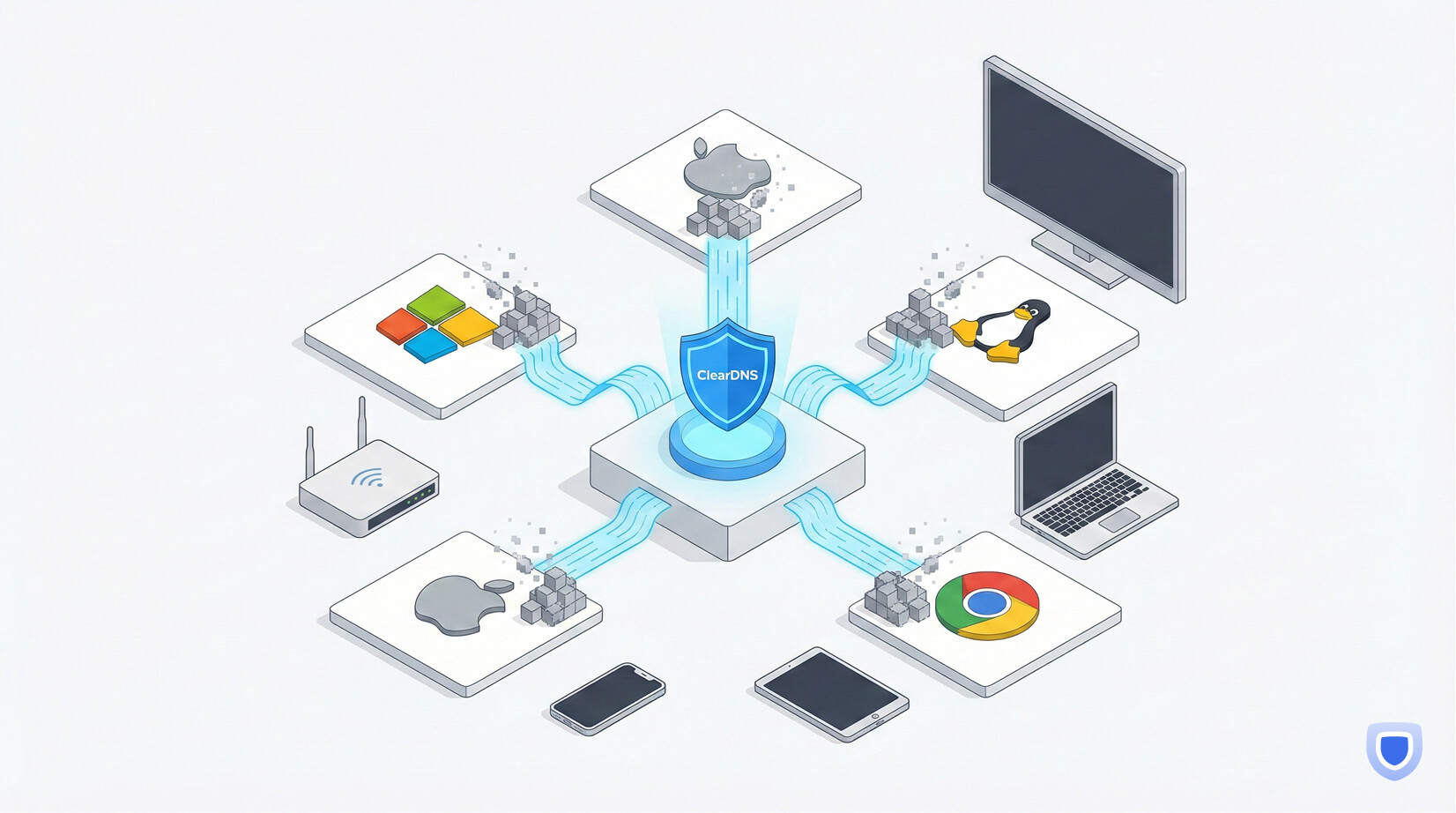
- Works on every device - phones, laptops, tablets, smart TVs, routers
DNS Cache vs. Browser Cache
Don't confuse DNS cache with browser cache. They're different:
- DNS cache stores domain-to-IP mappings. Flushing it forces a new DNS lookup.
- Browser cache stores web page content (images, CSS, JavaScript). Clearing it forces a fresh download of page assets.
If a website looks broken or outdated, try clearing both. But if you simply can't reach a site at all, the DNS cache is usually the culprit - and ClearDNS makes it a non-issue.
Stop Clearing Your DNS Cache Manually
ClearDNS uses 20-60 second cache TTLs. Stale records fix themselves. No account required.
Set Up ClearDNS